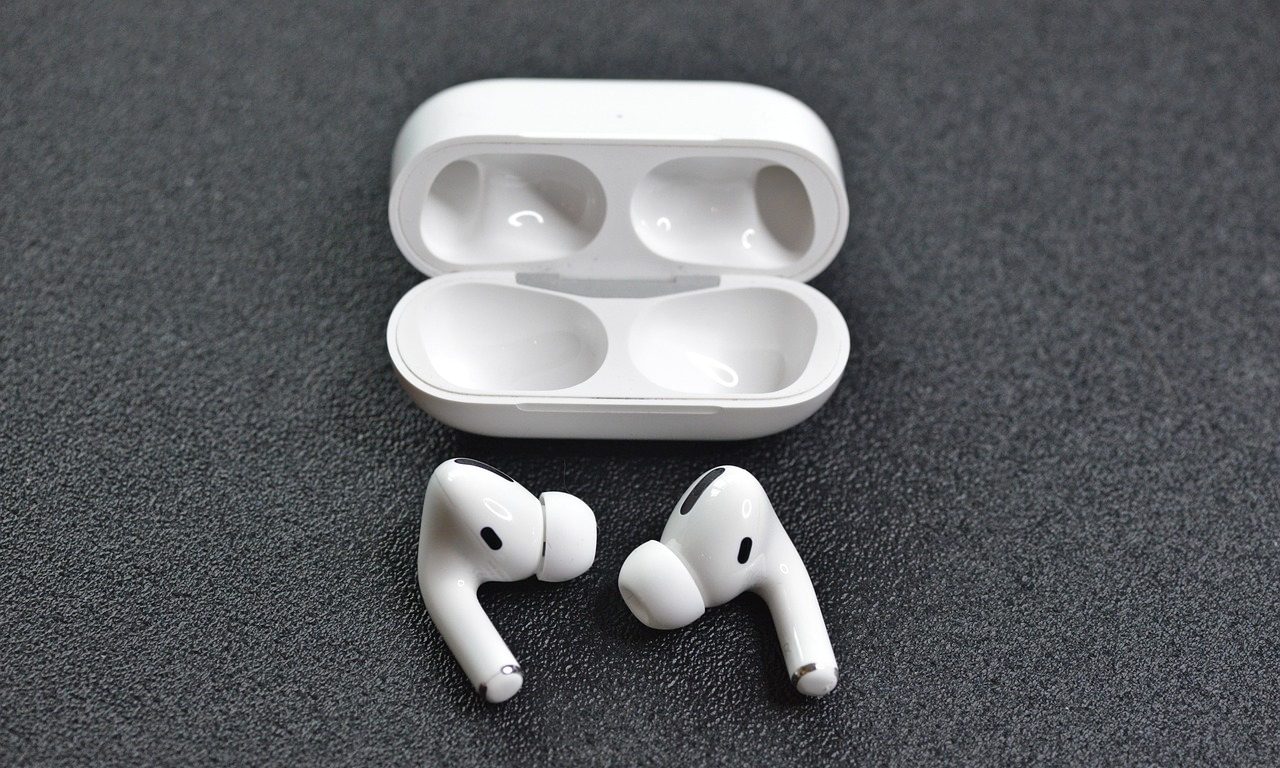
Apple AirPods are the top choice anyone wants to grab when buying earphones. Furthermore, if you are a passionate gamer and own a PlayStation 5, you may want to connect your AirPods to your console for more effective and better gaming sessions. But the question is, ‘Can you connect AirPods to PS5?‘
Despite its many cutting-edge innovations, it’s sad that Sony’s latest gaming console lacks built-in compatibility for Bluetooth headphones. Fortunately, you can overcome this simply by having a Bluetooth adaptor that works fine with your PlayStation 5. However, you may feel some delay and instability when using wireless headphones, which you can’t bear if you are a passionate gamer.
So, the choice for top-notch AirPods comes in handy in that situation. But remember, depending on how you pair your AirPods with your PS5, you might find yourself engaged in the high-def audio of your games without the possibility of chit-chatting. This guide explains how to connect AirPods to PS5 correctly and everything you need to know about the connection between both devices. Moreover, if you don’t have a PS5 and are gaming on an older console, check out our guide on connecting AirPods to PS4.
Can You Use AirPods on PS5
Isn’t it a bummer that even with all its high-tech jazz, the PS5 doesn’t come with support for Bluetooth earphone audio? To use your wireless buds with the PlayStation 5, you have to spend the extra dough on a Bluetooth device adapter.
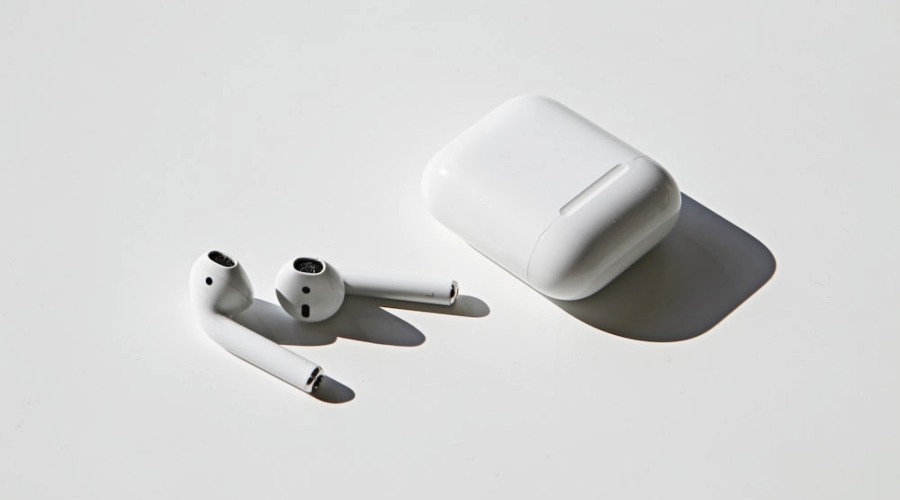
You might have run into this – you spot your Bluetooth device (AirPods or other headphones) on your console and get super psyched. But then, total facepalm moment when the pairing process bombs out right at the finish line. A solution? You can hook a Bluetooth adapter to the console’s audio jack to dodge this issue.
The good news is you can buy a Bluetooth adapter for around $50 price bracket. It works for any version of the AirPods. You can plug the adapters into these connectors, Whether the PS5’s USB/headphone jack or the HDMI port on your TV. However, it’s simply a matter of your personal choice and requirements. Before moving into our step-by-step guide to connecting AirPods to PS5, the connectivity method is the same for every Bluetooth headphone.
How to Connect AirPods to PS5
As discussed above, the AirPods or headphones will be recognized by the PS5, but no connection will be established. Like Apple, Sony uses this method to restrict the peripherals that can be attached to their devices. However, those who own an appropriate Bluetooth adaptor have a way around this problem.
According to our examination, the Bluetooth 4.0 or below adapters couldn’t make a connection usually. Therefore, consider buying an adapter with Bluetooth 5.0 because it will work when establishing the connection between AirPods and PlayStation 5. Visit the below link to find out any suitable PS5 Bluetooth adapter for you.
Follow the below steps to connect AirPods to PS5:
- It would be best if you fully charged AirPods before you begin. However, the adapters take power from the devices to which they are attached, so they don’t require to be charged separately.
- Now, plug the Bluetooth adapter into your PlayStation 5 USB port to start the process.
- For pairing, refer to the manual to learn how to put your device into pairing mode, as this may vary from model to model. In most cases, the blinking of light signals that the device is ready to pair.
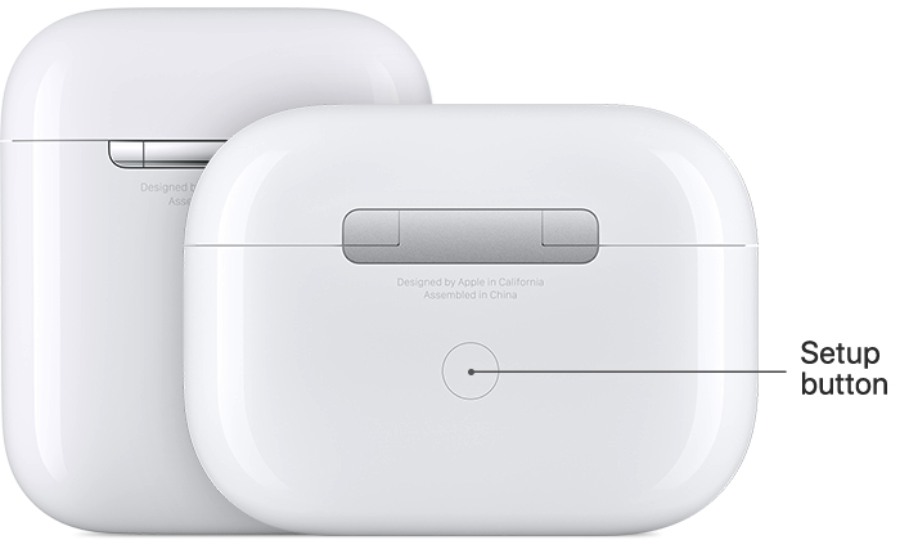
- Put your AirPods into the case and press the button on the back of the case to put the AirPods into pairing mode.
- Keep holding the charging case’s button until the solid blue light appears on the Bluetooth adapter. If you see it, it means your AirPods are successfully connected with the PS5 adapter. You can now use your AirPods to listen to PlayStation 5 audio.
Connect Your AirPods With TV
One other way to connect AirPods to PS5 is with the help of a Smart TV. If you have no PS5 Bluetooth adapter, you can use this method as an alternate. Many Smart TVs come with Bluetooth connectivity support nowadays, which means you can pair your AirPods with a TV instead of linking them with the console itself, and the process is simple.
The settings will vary on different TVs, but you should need to look for the Device/Accessories option from the Settings menu. Put your AirPods in the pairing mode using the method discussed above and then choose Scan for Devices on your Smart TV. Look for the AirPods to start connecting and change the audio settings of your TV to headphones from Settings to allow the earbuds to work. That’s all to do, and you are ready for some playing action.
What If I Can’t Hear PS5 Audio After Connection?
Once you have tried everything mentioned and still aren’t getting any sound, double-check that they are correctly linked with your PS5. Follow the below steps to check out the sound settings of your console:
- Open PS5 Settings from the option on the home screen.
- From the options, click on Sound.
- Move into the Audio Output section.
- Choose Output Device and select your Bluetooth device from here.
Can You Use AirPods Mic to Talk with Others on PS5?
Unfortunately, Sony has put a couple of restrictions on their PlayStation console when you connect them with AirPods or any other headset.
First, you will notice some delay or latency between the live action on the screen and the audio you hear. Such a thing is a cause ruining the gaming experience of the players. That’s because of the way Bluetooth transmits sound to the headphones. For all serious gamers, this is not acceptable at any cost, as they always look for the best options for their gaming sessions.
Secondly, you cannot use the AirPods microphone for a conversation on Sony PlayStation 5. To communicate with your teammates during the fully intense battles, you need to attach the PS5 Bluetooth headphones to your console, which features a built-in mic. If you have the extra cash, you can go with the premium Apple AirPods Max headphones. Apple provides a headphone cable to link them to your PS5. All you have to do is modify the appropriate settings for audio and microphone on your controller.