- How to Use One WhatsApp Account on Two Phones with the Same Number
- Set up Primary Phone
- Link Your Second Phone
- How to Manage Multiple Devices
- How to Switch Your Primary Device
- Troubleshooting Common Issues
- QR Code Won’t Scan
- “Unable to verify phone” Error
- Chats Don’t Sync
- Calls Failed to Ring on the Secondary Device
- Frequently Asked Questions
- What happens to my secondary phone WhatsApp if I factory reset my primary phone?
- Do both devices need SIM cards to use the same WhatsApp number?
- Can I simultaneously link an iPhone and Android to the same number?
- What happens if both my phones try to answer the same WhatsApp call?
You need WhatsApp to be active on your personal phone and work phone. Or maybe you carry a backup device and want your chats accessible everywhere. WhatsApp now lets you link the same number to multiple phones simultaneously, so you don’t have to log out and risk losing your chat history every time you switch. Read on to learn how to login WhatsApp in another phone from the primary device using the same number.
How to Use One WhatsApp Account on Two Phones with the Same Number
Both phones must be connected to the internet during setup. The second phone can use WiFi or mobile data, but what happens next depends on the main phone’s connection. Keep in mind that the companion device needs a fresh, unconfigured WhatsApp installation.
Also: How to Share Location on Android: 7 Easy Methods
Your primary phone doesn’t have to stay connected after initial setup. Secondary phones work independently once linked, even when your main device is off or has no signal.
Each device downloads your recent chat history separately. That means:
- Photos and videos consume storage on every linked phone.
- Large chat histories take a long time to sync the first time.
- There should be enough free storage on the secondary device.
The companion phone has to be able to scan QR codes with its camera. Some older phones have a hard time with that, particularly in low light.
Live location doesn’t work on companion phones. Further, if you don’t use WhatsApp on your primary phone for more than 14 days, all linked phones will be logged out.
Set up Primary Phone
Open WhatsApp on the phone that currently has your account active. This becomes your “primary device” that controls all companion phones.
On Android:
- Tap the three dots in the top right.
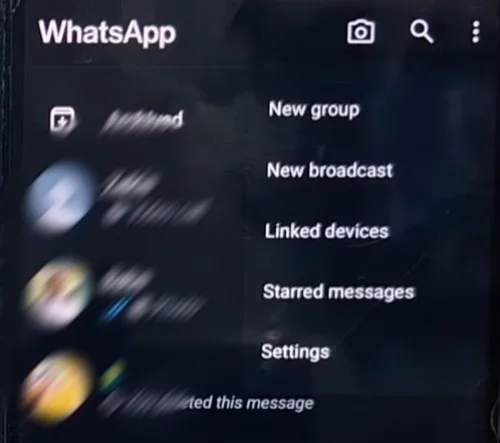
- Select “Linked devices.”
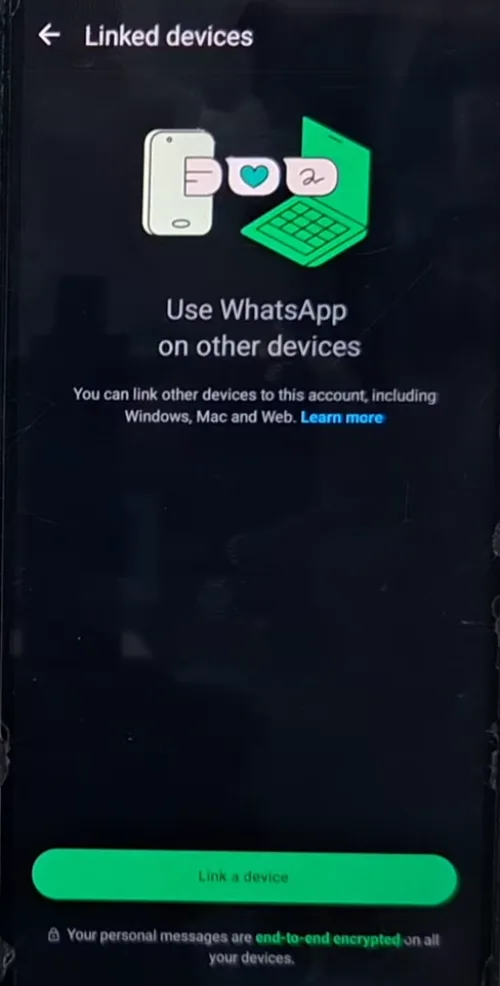
- Tap “Link a device.”
- Authenticate with fingerprint, PIN, or pattern.
- Grant camera permission when prompted.
On iPhone:
- Tap Settings in the bottom right.
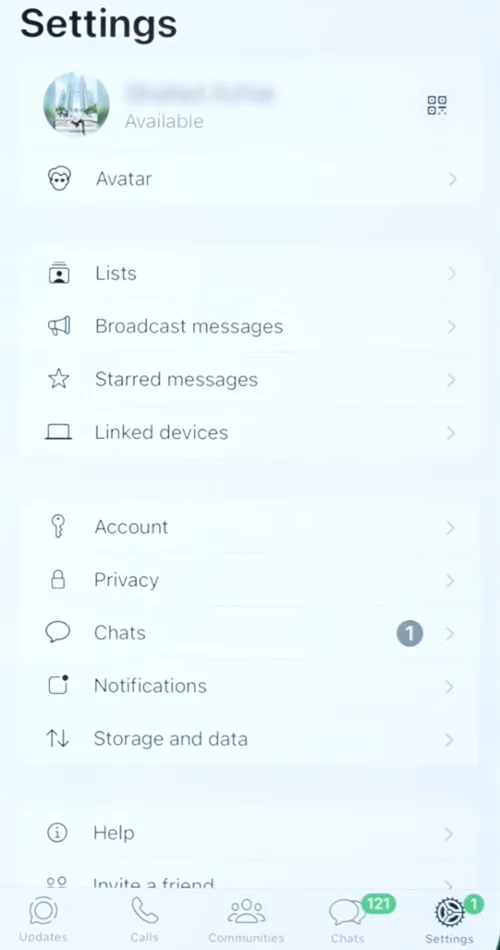
- Choose “Linked devices.”
- Tap “Link device.“
- Confirm with Face ID, Touch ID, or your passcode.
- The QR code scanner will open to scan the code from the second phone.
Also: Why Does My Phone Get Hot When Charging? Reasons and 11 Quick Fixes
Link Your Second Phone
The secondary device needs WhatsApp installed, but not registered with any number. If WhatsApp is already active on that phone with a different number, you’ll need to log out first (which deletes that account’s local data from the device).
- Install WhatsApp from the Play Store or App Store.
- Open the app and accept the terms and conditions.
- When the app asks for your phone number, ignore this.
- Tap the more icon at the top right.
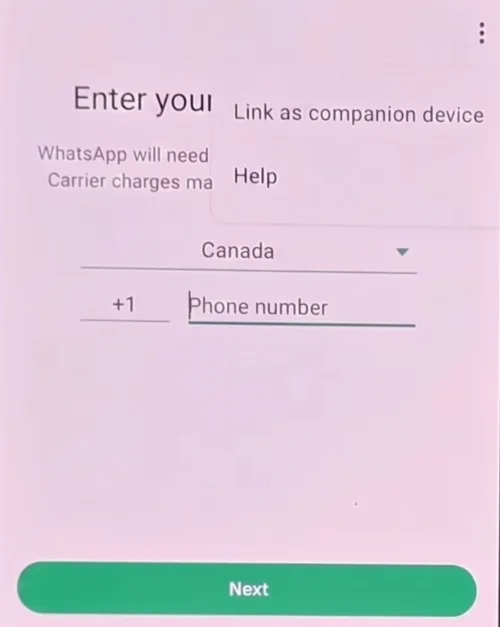
- Choose “Link as companion device“.
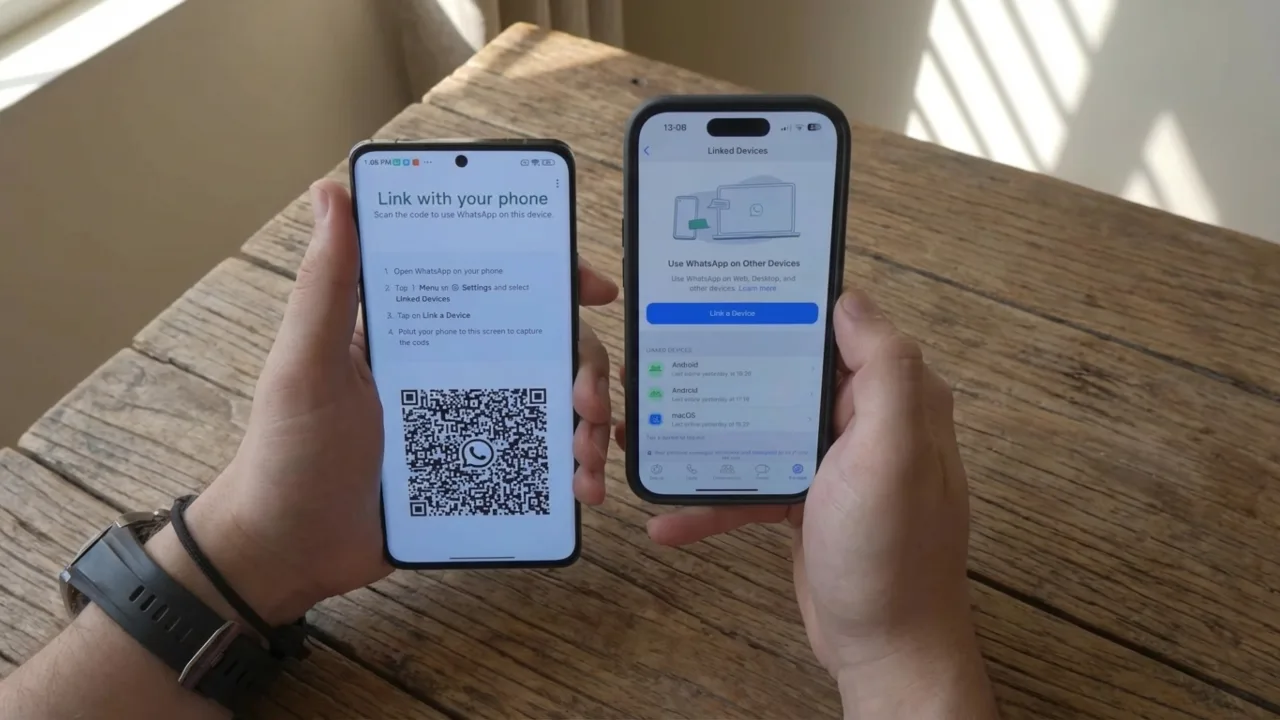
- The secondary phone will display a QR code on its screen. The code refreshes every 60 seconds for security, so be quick.
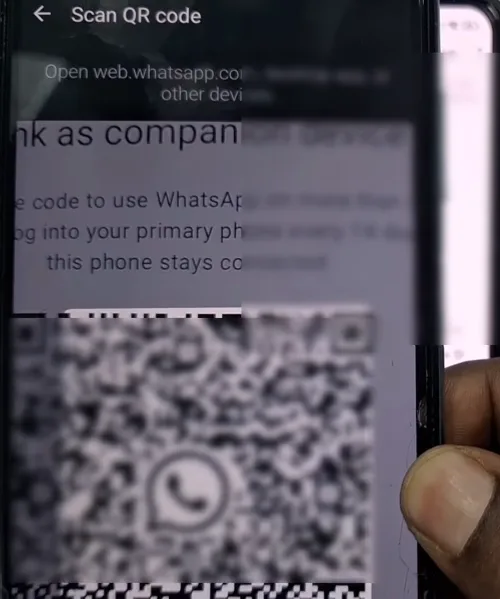
- Point the main phone’s camera at the QR code.
To link multiple devices at once, screenshot the QR code. The image can work for about 30 seconds, and will save you from juggling two phones for a scan.
Give it a few seconds to process the encryption keys. Your secondary phone will show “Linking device…” and your chat history will begin downloading. The first sync can take a few minutes, depending on the size of your chat history and the Internet speed. Keep both screens active until the conversations are fully populated.
How to Manage Multiple Devices
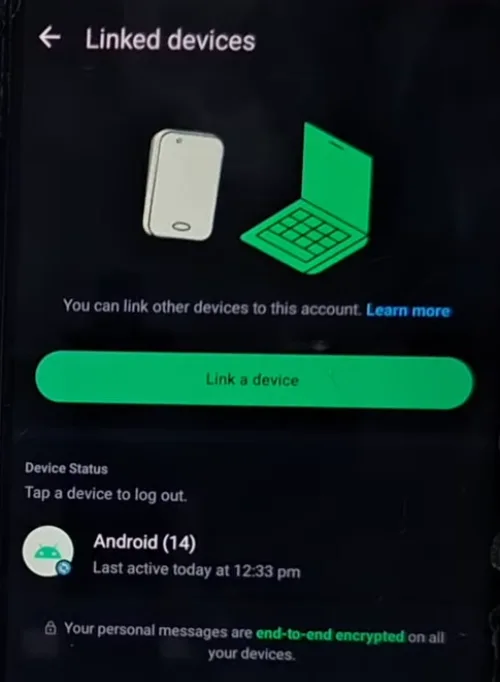
To check all linked devices on WhatsApp, go to Settings/Three dots → Linked Devices on your primary phone. You’ll see all connected devices, along with:
- Device type (Android/iPhone)
- Last active time
This list reveals something interesting: If you see an unknown device, it could mean someone linked your account without permission.
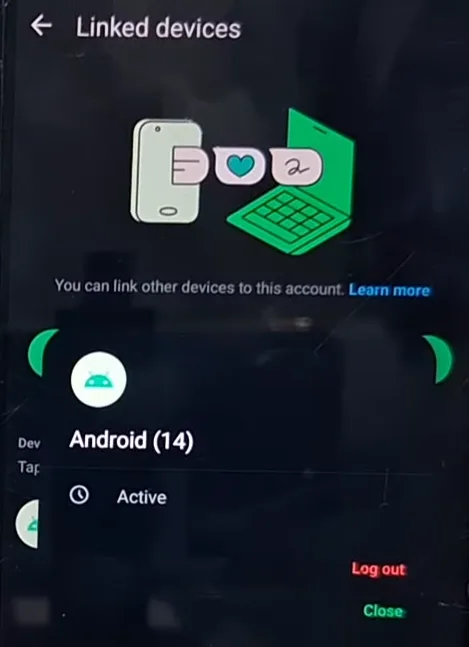
To remove a linked device, tap on it and choose “Log out.” The phone will show “Phone disconnected” and will not access the account anymore. You can do this remotely, too. If you lost a secondary phone, unlink it from the primary — you don’t need the phone in your hand.
Unlinking doesn’t delete WhatsApp data from that phone’s storage. Someone with physical access could still view old messages stored locally until the app data is cleared or a different number gets registered.
How to Switch Your Primary Device
You can change which phone is “primary” without unlinking everything. Follow these steps:
- Unlink all devices from your current primary phone.
- Uninstall WhatsApp from that phone.
- Install WhatsApp on the new main device.
- Register your number on it.
- Re-link all secondary phones.
This process preserves cloud backups but will delete local chat history from the old main device. So you must unlink, uninstall, and re-register.
Backup your chats to Google Drive or iCloud before you switch primary devices to keep previous local history.
- Go to Settings > Chats > Chat Backup on your current main phone and force a manual backup to the cloud.
- Install WhatsApp on the new phone, enter your phone number, and verify the SMS code.
- Restore the backup when prompted.
Once you verify the SMS on the new device, your old phone will be kicked offline. You can then factory reset the WhatsApp app on the old phone and link it back as a secondary device using the QR code steps above.
A primary phone generates encryption keys in the background and manages the broadcast list. Secondary phones mirror the primary, but they don’t have the permissions to take over the account without SMS verification.
Troubleshooting Common Issues
QR Code Won’t Scan
Your secondary phone’s screen is either too dim or Dark Mode is destroying the contrast. Try these things:
- Clean both camera lenses.
- Turn off Dark Mode and increase screen brightness on the primary phone.
- Hold the scanning phone 6-12 inches from the screen.
- Tap to focus the camera if the image is blurry.
- Try again in better light.
If the code keeps refreshing before you can scan it, take a screenshot on the main phone and scan the screenshot instead.
“Unable to verify phone” Error
The internet connection dropped during the link process. Both phones need a stable network throughout the 30-second linking window. Restart both phones and try again, and better use Wi‑Fi instead of mobile data if possible.
Chats Don’t Sync
Usually, this means that background data is restricted for WhatsApp on a single device. Check battery optimization and data restriction settings. WhatsApp needs background data to sync. Force close the app on the affected device, then reopen it to trigger a fresh sync.
Also: How to Find Hidden Apps on Android
Calls Failed to Ring on the Secondary Device
Notification permissions have probably been turned off. To verify it, tap Settings → Notifications and make sure calls can interrupt and show on the lock screen. On iPhone, check the Do Not Disturb settings, which might be blocking WhatsApp calls.
Keep the primary phone charged, even if you mostly use a secondary device. If the main phone dies and won’t turn on, you can’t manage linked devices until it’s charged. I learned this the hard way on a trip when I needed to unlink a device, but my primary phone was dead in my luggage.
Frequently Asked Questions
What happens to my secondary phone WhatsApp if I factory reset my primary phone?
Your secondary device continues to work normally with full chat access. However, you won’t be able to link new devices or unlink existing ones until you register the number again on a new primary phone. So the secondary becomes frozen in its current state.
Do both devices need SIM cards to use the same WhatsApp number?
No. Only the primary phone needs the SIM card connected to your WhatsApp number. Secondary phones can operate on Wi‑Fi without a SIM. They authenticate via a QR code instead of SMS verification, so you don’t need carrier service on the companion.
Can I simultaneously link an iPhone and Android to the same number?
Yes. Companion Mode works across iOS and Android. You can mix iPhones, Android phones, and tablets however you want, up to the four-device companion limit, all tied to one primary device. Talking about it, you can even use WhatsApp on PC, either via WhatsApp Web or the Windows app.
What happens if both my phones try to answer the same WhatsApp call?
Whichever device you answer first connects the call, and all other linked devices stop ringing automatically. If you answer on a tablet first, your phone’s notification will disappear, as it’s impossible to transfer an active call between linked devices. However, sometimes one device may respond faster depending on network speed and app activity, so slight differences can occur.