You plug your phone in, ready for it to power up, and… nothing happens. It’s frustrating, panic-inducing, and downright annoying. But before searching for a new phone or charger, take a deep breath. Often, the problem is something simple and fixable. Let’s go through a few common reasons your Android phone might not be charging—and what you can do about it.
1. Check Your Power Source
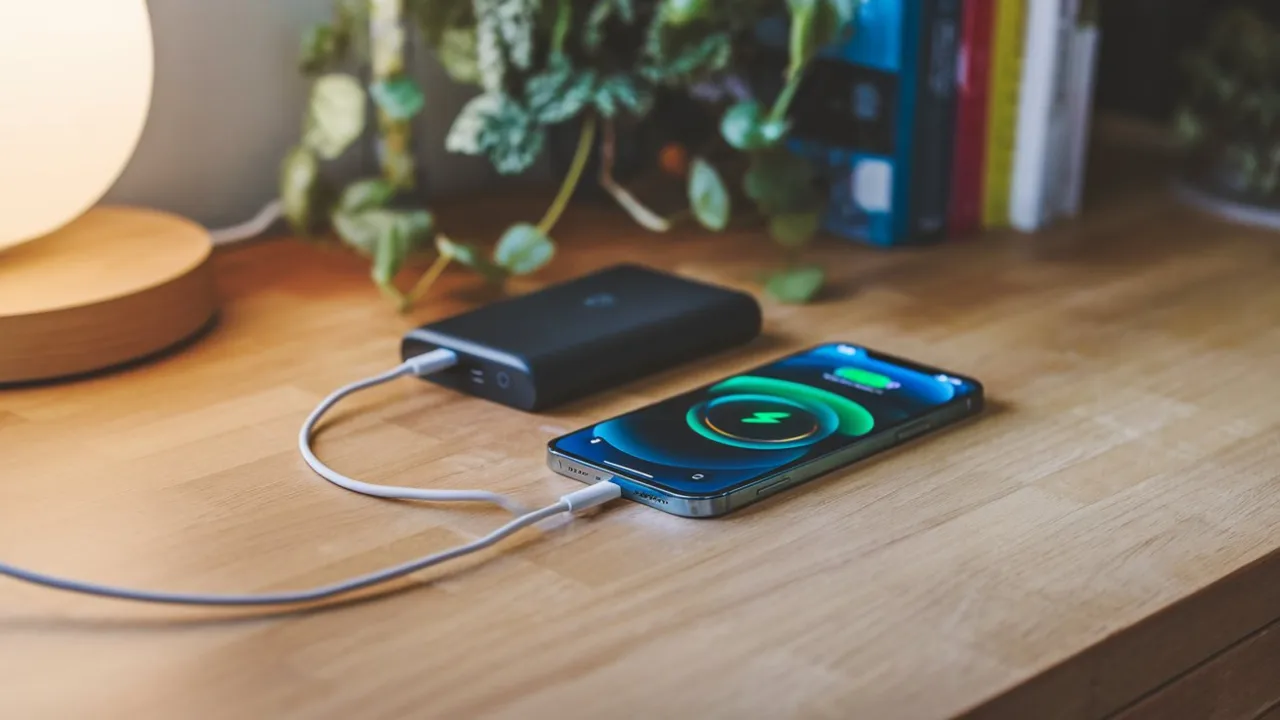
First things first, is the power source working? It sounds silly, but you’d be surprised how often it’s the reason. Try plugging your phone into a different outlet, or even another device like a laptop or power bank. Wall outlets can sometimes fail, and USB ports on computers are weak and slow when it comes to charging. If switching outlets or devices solves the problem, then congratulations—you’re good to go! If not, keep reading.
2. Test the Cable and Charger
The next suspect? Your charging cable and adapter. Over time, cables get worn out, frayed, or just plain damaged, especially if you’ve been using the same one for years. Look closely for any signs of wear and tear like bends, exposed wires, or burn marks. You can also try a different cable or charger. A good way to test if it’s the cable is to plug it into another device—if it doesn’t charge there either, you’ve found your problem. Trust me, investing in a good cable is worth it, and avoid the super-cheap knockoffs; they’re more trouble than they’re worth.
3. Clean the Charging Port
Here’s a common problem that’s very easy to fix. Dust, lint, and debris can get trapped in the charging port over time. I once had a phone that stopped charging entirely, and it turned out that some pocket lint was the culprit. Grab a flashlight and take a peek inside your phone’s port. If you see anything, use a toothpick or compressed air to gently clean it out. Be careful not to damage the port though—no need to jab in there like you’re hunting for treasure.
4. Restart Your Phone
Have you tried turning it off and on again? I know, it’s the oldest trick in the book, but sometimes your phone simply needs a reboot to sort out software glitches. Holding down the power button and selecting “Restart” can close out any background apps or processes that might be messing with the charging. You’d be amazed at how many issues a quick restart can solve on many occasions. If that doesn’t work, try powering it off completely and then charging it. Without apps running in the background, your phone might charge faster and more efficiently.
5. Safe Mode to the Rescue
If your phone still refuses to charge after a restart, try switching to safe mode. In safe mode, your phone disables third-party apps, so you can find out if the problem is solved in Safe Mode when there is no external app available. To enter this mode, press and hold the power button, then tap and hold “Power Off” until you see the safe mode prompt. If your phone charges while in safe mode, it means one of your apps is the problem. Time to hunt down the culprit and uninstall it.
6. Is the Battery Toast?
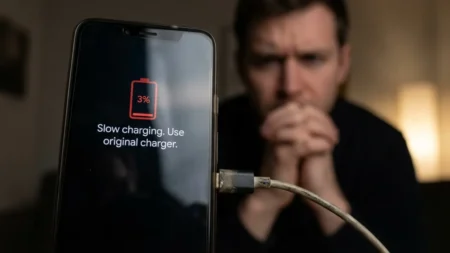
If you’ve had your phone for a while, the battery might be nearing the end of its life. Most modern Android phones don’t have removable batteries, but if yours does, you can try replacing it. For devices with non-removable batteries, you might have to visit a repair shop. One telltale sign that your battery is on its last legs is if your phone is very slow in charging, even after you have tried all the other fixes.
7. Wireless Charging: A Handy Backup
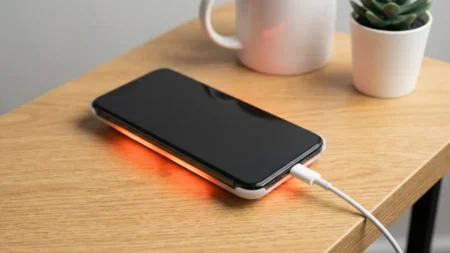
If you’ve tried everything and your phone still won’t charge via cable, but it supports wireless charging, give that a go. It’s not a permanent solution, but it can be a lifesaver until you figure out the root of the problem. If your phone isn’t charging wirelessly either, the issue might be more serious, possibly related to the phone’s internal hardware.
8. Check for Water Damage
So this one might seem far-fetched, but it’s not as uncommon as you think. If your phone has recently been exposed to water, even if it’s water-resistant, there is a possibility of damage that’s preventing it from charging. If you think water is the issue, don’t plug it in immediately—let it dry out completely first. Some people swear by the old “put it in rice” trick, but honestly, just leave it in a dry, well-ventilated place for at least 24 hours. If the phone is still misbehaving after that, you should ask for professional help.
9. Update Your Software
Sometimes, the culprit is software-related. If your phone isn’t charging but everything else seems fine, check for software updates. An outdated operating system can cause many problems, including charging problems. Head into your phone’s settings and if there are new system updates available to download. If there is, install it and see what happens next.
10. Time to Visit a Professional
If none of the above tricks work, it might be time to throw in the towel and visit a repair shop. Your phone’s hardware can also have an issue, like a faulty charging port or motherboard. If your phone is still under warranty, you can get it fixed for free—or at least at a discount. If it’s an older phone, you’ll have to weigh the cost of repairs against just buying a new handset.
Conclusion
Charging issues can be frustrating, but don’t panic just yet! Often, the problem is something simple like a bad cable, dirty port, or software glitch. Try the easy fixes first, and if those don’t work, consider a visit to the repair shop. With a little patience (and maybe a new charger), your phone will be back up and running in no time.