- Uninstall Apps or Programs on Windows from the Start Menu
- Uninstall Apps and Programs on Windows in Settings App
- Uninstall Apps and Programs on Windows from the Control Panel
- Uninstall Built-in System Apps with PowerShell
- Run the Built-In Uninstaller from the Program Folder
- How to Clean Up Leftover Files After Uninstall
- Should You Manually Edit Registry?
My Windows 11 PC had 47 programs I’d completely forgotten about. Forty-seven. Trial versions from 2019, bundled bloatware from my laptop manufacturer, three different PDF readers, and something called “Toolbar Companion” that I’m 90% sure was tracking my breakfast choices. When I finally open the apps list, it was a drawer I’d been avoiding for years, mucky digital clutter caked into every corner.
Microsoft data indicates that the average Windows user has 30-50% more installed programs than they actually use. That’s not only wasted storage but background processes eating your RAM, outdated software with security holes, and startup programs that make Windows boot slow. If you’re like me with a bundle of useless apps stuffed in your machine for no reason, here are the easy ways to uninstall or remove apps and programs on Windows 10 and Windows 11.
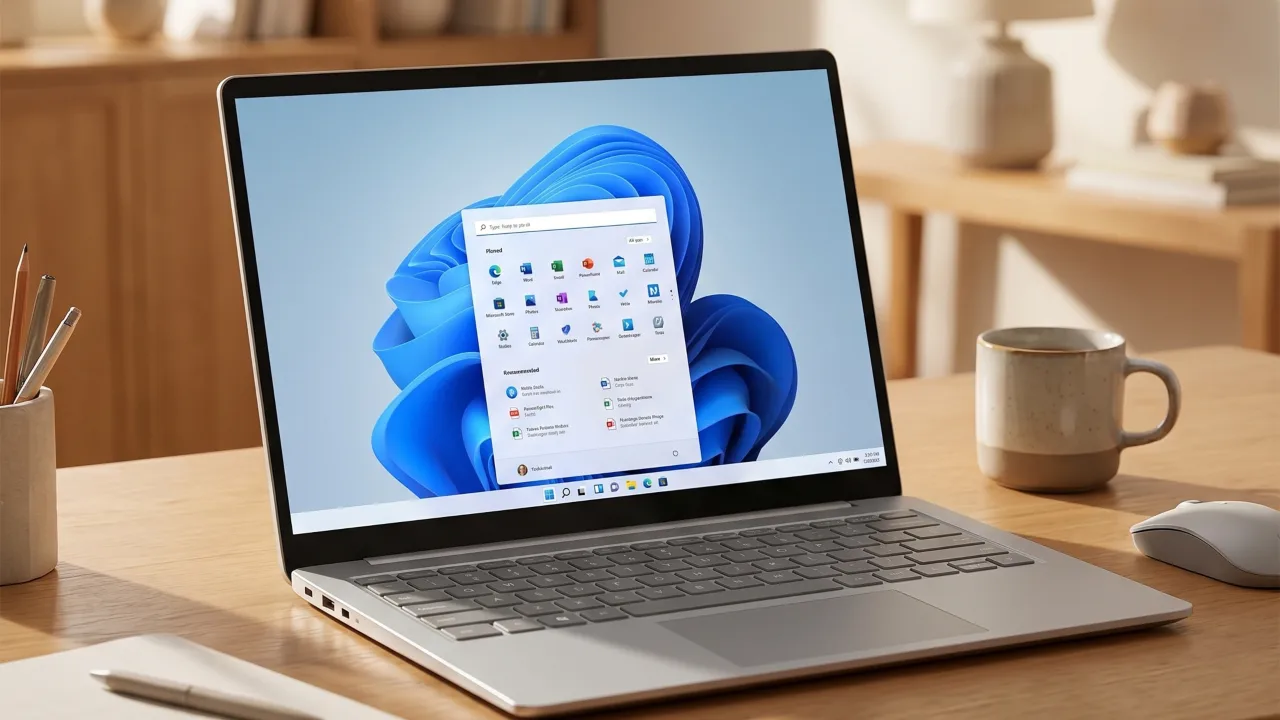
Uninstall Apps or Programs on Windows from the Start Menu
The quickest way to get rid of an application is from the Start Menu. Microsoft designed modern Windows UI so you can uninstall programs without having to dig through settings menus.
On Windows 11:
- Open the Start menu.
- If the app is not pinned in the list, click All apps in the top-right corner. Alternatively, type the app name.
- Press and hold (or right-click) the app icon and select Uninstall.
- Confirm the pop-up to finish.
On Windows 10:
- Open the Start menu.
- Scroll through the alphabetical list on the left or find the tile on the right.
- Right-click the app or program and choose Uninstall.
When you right-click old, legacy desktop programs from the Start Menu and select Uninstall, Windows might automatically redirect you to the Control Panel’s “Programs and Features” window. You can then remove it from there.
Uninstall Apps and Programs on Windows in Settings App
If you want to see exactly how much space an app or program has consumed, go here.
On Windows 11:
- Press Win + I to open Settings or click Start > Settings.
- Go to Apps > Installed apps.
- Find your app, click the three horizontal dots (ellipsis) on its right end, and select Uninstall.
On Windows 10:
- Press Win + I to open Settings or click Start > Settings.
- Go to Apps > Apps & features.
- Scroll through the list or use the search bar at the top to find what you want to remove.
- Click the app or program name in the list to reveal the hidden Uninstall button.
- Next, confirm and follow the on-screen steps.
Use the “Sort by” filter in the Settings list to arrange programs by Size to quickly find the biggest space wasters, bloating your PC’s storage drive. You’d be horrified how many GBs of forgotten programs are lounging around.
Uninstall Apps and Programs on Windows from the Control Panel
Microsoft keeps trying to kill Control Panel, but it won’t die and for good reason. It still works great, and sometimes the only way to cleanly remove old software from a computer installed years ago. The process is the same for both Windows 10 and 11:
- Press Win + R to open the Run dialog.
- Type appwiz.cpl and press Enter. This command will directly launch the Programs and Features window.
- Otherwise, press Windows key + R, type control, and press Enter. Or search for “Control Panel” in the Start Menu. From there, click Programs > Programs and Features.
- Once there, scroll through the list of installed software.
- Press and hold (or right-click) the program to remove and choose Uninstall.
- Follow the next uninstallation wizard.
You might see options to “Change” or “Repair” next to the Uninstall button. If a critical driver is faulty, try the Repair function first to fix broken files without a full removal.
Uninstall Built-in System Apps with PowerShell
Some Windows apps are built into the OS, and you can’t remove them the normal way. PowerShell gives you the administrator permissions needed to force uninstall them. Apps like Cortana, Mail, Maps, and the Xbox app can be removed via the PowerShell commands.
- Right-click Start and choose Terminal (Admin) on Windows 11, or Windows PowerShell (Admin) on Windows 10.
- Type
Get-AppxPackageand press Enter to generate a list of every installed app. - To delete a specific app, type:
Get-AppxPackage *AppName* | Remove-AppxPackage(replace AppName with the actual name, like ZuneVideo for the media player). - For example, to remove the Xbox Game Bar:
Get-AppxPackage Microsoft.XboxGamingOverlay | Remove-AppxPackage - Press Enter to execute the command.
Does the thought of typing command lines make you nervous? Simply pick one unused app from the Start Menu, right-click it, and hit uninstall. Freeing up even a few megabytes is a low-stakes win that puts you back in the driver’s seat.
Run the Built-In Uninstaller from the Program Folder
Many software programs have their own uninstaller executable in the installation folder. You’ll see this often with large applications like games and creative suites, and it was also the standard for legacy programs from the Windows XP days, before Microsoft had a unified uninstall system.
- Open File Explorer and head to C:\Program Files or C:\Program Files (x86) for a 32-bit application.
- Open the software folder to remove.
- Find a file named uninstall.exe, uninst.exe, or unins000.exe.
- Double-click the executable to run the uninstaller and follow the instructions on the screen.
Do not manually delete files from a program’s folder without running its uninstaller. When you delete raw files manually, it leaves behind registry entries and broken system references. To the computer, the program looks gone, but it will linger in Control Panel and may cause errors.
How to Clean Up Leftover Files After Uninstall
So you’ve removed the program. Here’s what I always check next:
- Restart PC: Some uninstallers need a reboot to completely remove drivers or services. Don’t skip this.
- Check the Program Files folders: Go to both C:\Program Files and C:\Program Files (x86) and look for the program’s folder. If it’s still there with remnant files, delete it manually.
- Look in AppData: Many programs store settings in C:\Users\[YourName]\AppData\Local and C:\Users\[YourName]\AppData\Roaming. Check the program name and delete any remaining folders.
- Review Startup programs: Open Task Manager (Ctrl+Shift+Esc), go to the Startup tab, and verify the uninstalled program isn’t still listed. If it is, right-click and disable it.
Windows’ built-in Disk Cleanup tool can help delete installation files and temporary data left behind by uninstallers. Run it after major uninstalls by searching “Disk Cleanup” in Start.
Should You Manually Edit Registry?
Short answer: probably not.
After uninstalling programs, orphaned registry entries mostly won’t remove with them. Although technically harmless, they do clutter your system. However, manually editing the registry is risky—delete the wrong key, and you could break Windows functionality.
If you insist on registry cleaning:
- Use a reputable tool like CCleaner’s registry cleaner (free).
- Create a system restore point first.
- Back up the registry before making changes.
- Never delete anything unless you understand what it does.
I’ve been messing with Windows since XP, and I’ve seen manual registry edits go wrong more times than they’ve helped. The performance gain is negligible anyway, maybe 0.001%.