Finally got a new PlayStation 5? Congratulations, it only took you what, four years? After you’ve moved from a PlayStation 4 to a PS5 or PS5 Pro, you can transfer your existing games and save data to continue your progress on the new hardware without losing the 200-hour save file or having to re-download the complete game library on WiFi. Sony usually prompts you to do this during the initial setup, but you can also do it manually through the console settings. Follow one of the given methods to transfer your PS4 data to Sony’s PS5.
What Data Can You Transfer Between PS4 and PS5?
Your PS4 games, save data, screenshots, video clips, and system settings can all be moved, including the game progress. What doesn’t transfer is PS4 themes, trophies (these sync automatically through your PlayStation Network account, so don’t worry), folders you organized games into, and any sense that you’ll play through your backlog this time. The PS5 has its own UI that looks nothing like the previous model, so your carefully curated home screen layout is toast anyway.
Read: Should PS5 be Vertical or Horizontal in Position?
Method 1: Transfer Your Save Data Over Wi-Fi or Ethernet
To transfer your data, connect PS4 and PS5 to the same Wi-Fi network. For fast speeds, connect them to the router using Ethernet cables. This process will move all games and save files directly between the consoles, so you won’t have to re-download them. Before proceeding, update PlayStation 4 to the latest system software and sign in to your PlayStation Network account.
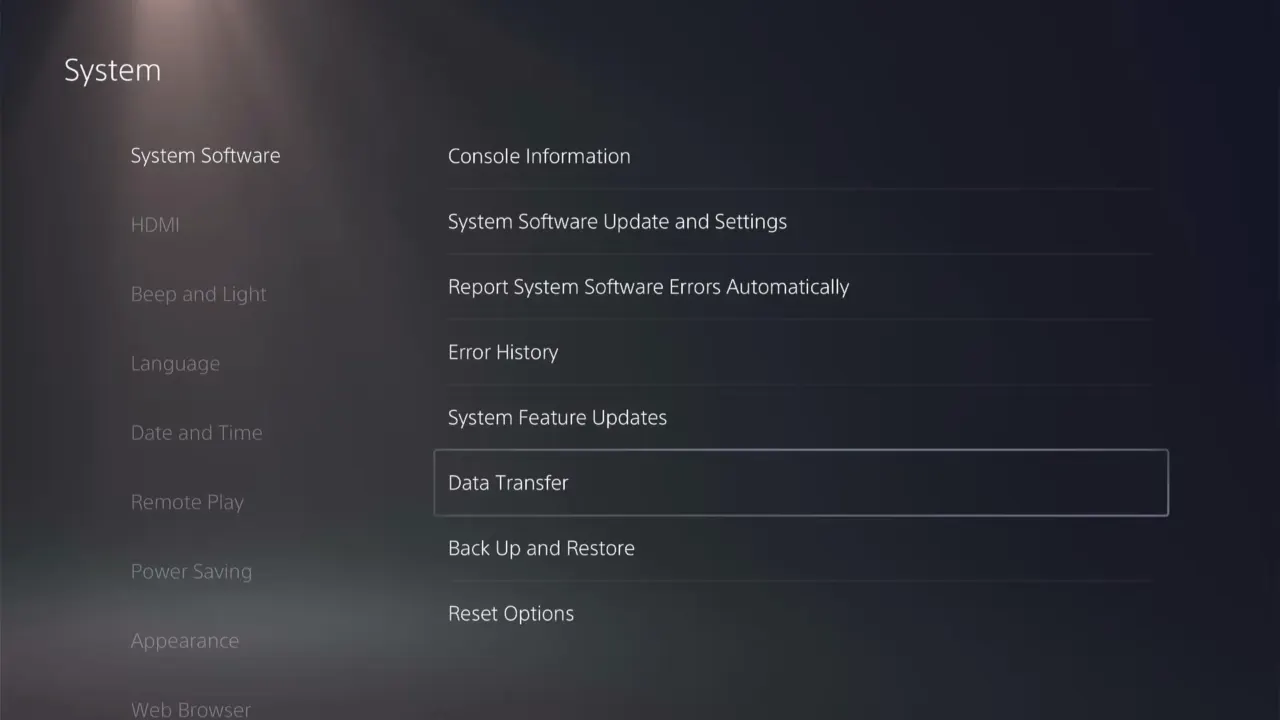
Next, log in with the same PlayStation Network on PS5, go to Settings > System > System Software > Data Transfer, and click Continue. The PS5 will scan your network for nearby Sony consoles and will show the detected ones.
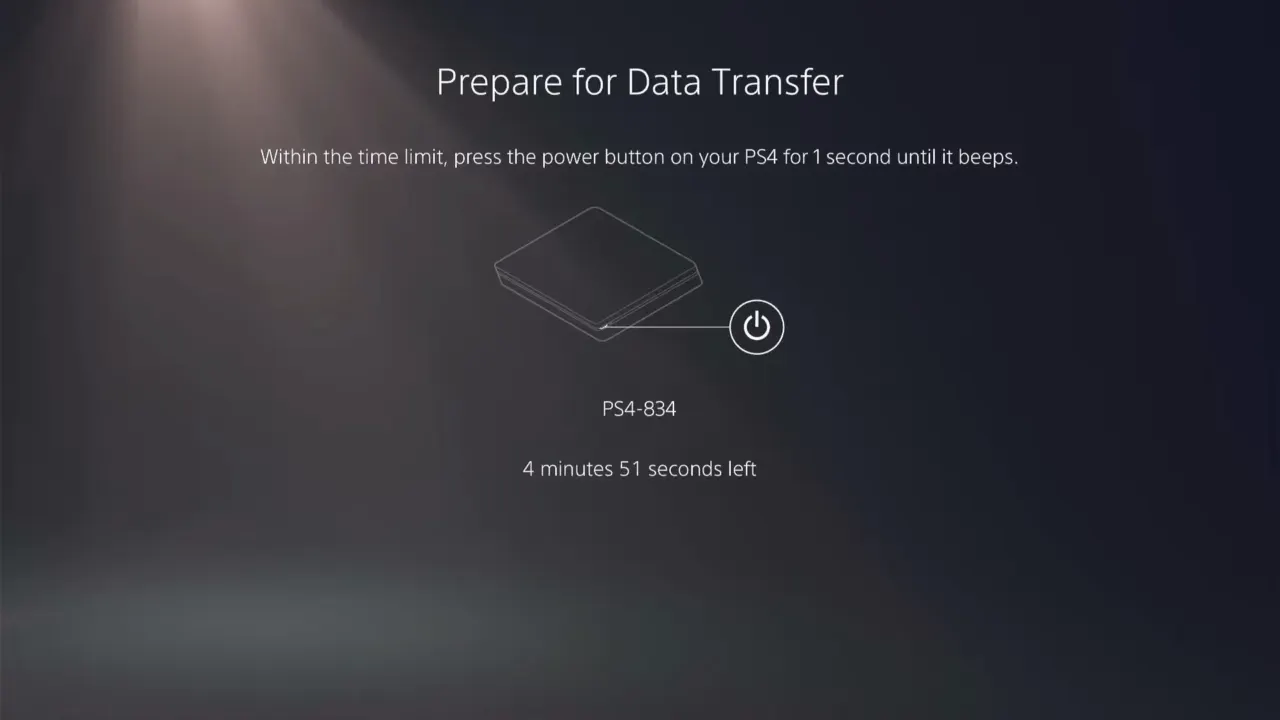
When prompted on the “Prepare for Data Transfer” screen, hold the power button on PS4 until it beeps. You can pick and choose the game files and data; maybe you don’t need that 50GB title you haven’t played since 2021. Select what you want, confirm, and the system will restart and begin to migrate data.
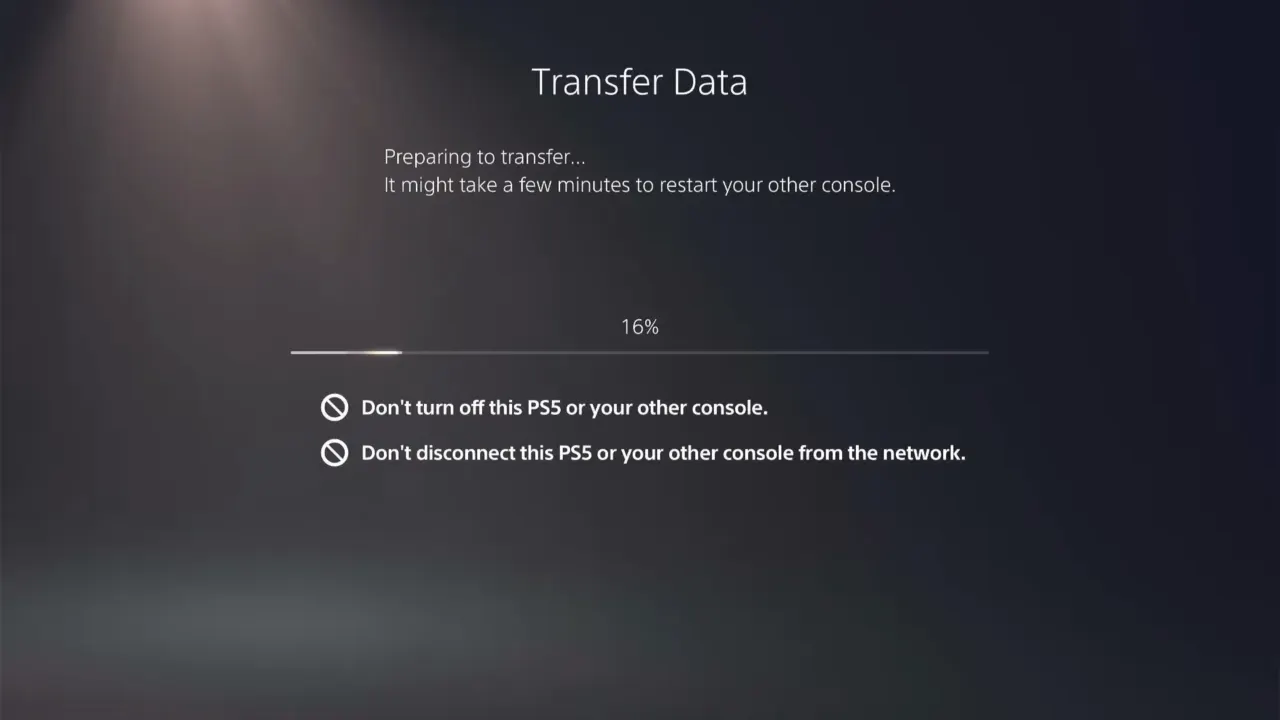
Transfer times will depend on your data size and network speed, and likely take hours for large libraries. 100GB of data will take 2-3 hours over WiFi, though less over Ethernet. Go watch a movie, touch grass, or do anything except hover over the consoles and check the progress every 30 seconds. You can use PlayStation 5 until the transfer continues on the side, and even play completely transferred games as soon as their thumbnails appear on the home screen.
Got an external storage drive for your PS4? Any games on it won’t move during the transfer. So, unplug the flash drive and plug it into the PS5. You can pick up the fun where you left off, no waiting required. You won’t get the speed boost from the PS5’s SSD with these titles, but keeping them on an external drive saves space for the new PS5 games, since they have to be on the internal drive.
Method 2: Transfer Games Data via USB Drive
If network transfers fail or you need to move data from a different PS4, you can use a USB flash drive to store it and later plug the USB into the PS5 to transfer everything to it.
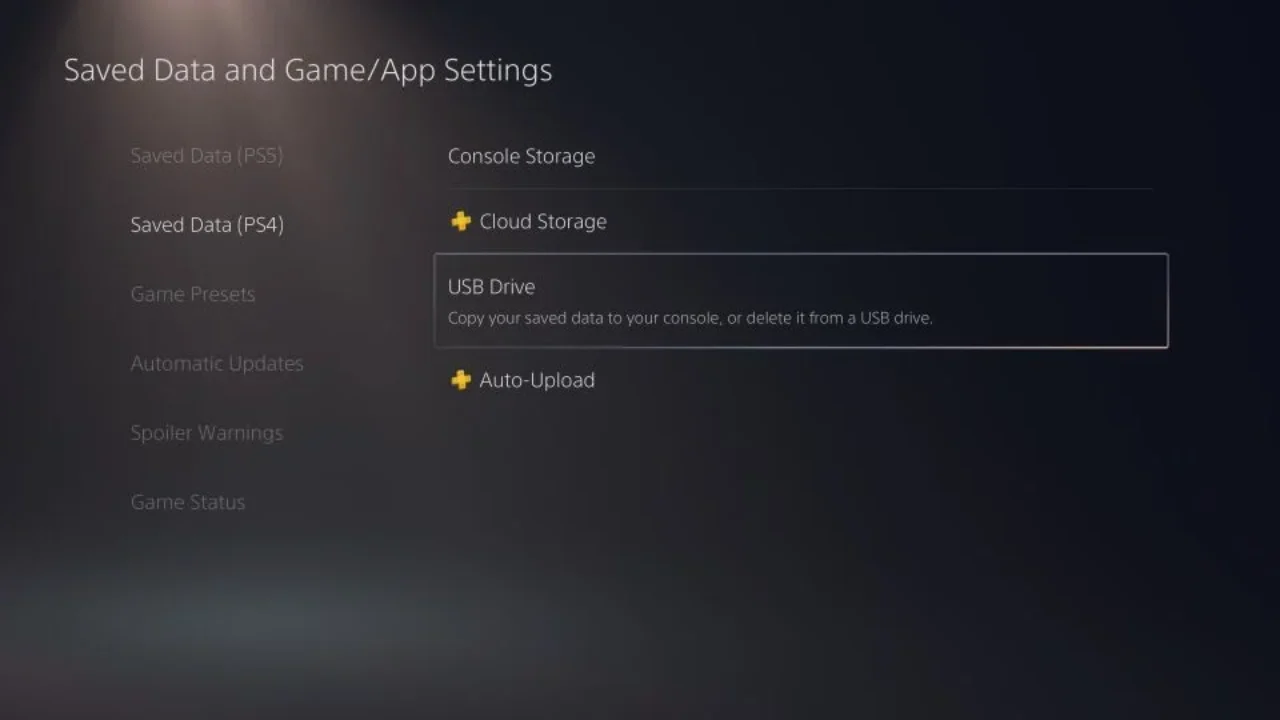
To move PS4 data in and out of an external storage drive, follow these steps:
- On PS4, go to Settings → Application Saved Data Management → Saved Data in System Storage → Copy to USB Storage Device.
- Copy the preferred game saves to transfer to PlayStation 5, eject the drive, and plug it into the new console.
- Next, go to Settings → Saved Data and Game/App Settings → Saved Data (PS4) → USB Drive. Select Copy to Console Storage and pick the saved data you want to migrate.
The process is slower than cloud sync, but it doesn’t need an internet connection or a subscription. Make sure the external drive is formatted as exFAT and has enough free space, as most AAA games take more than 40GB to 50GB each. Once the data migration is done, you can resume your Elden Ring story from the same boss fight where you were stuck with two defeats on PS4, given it’s also installed on the PS5.
Method 3: Transfer Data Using Cloud Storage with PlayStation Plus
If you have a PlayStation Plus subscription, your save data is backed up to the cloud, though this method won’t transfer actual games, so you’ll have to redownload them one by one.
On PlayStation 4, confirm that automatic uploads are active. Go to Settings > Application Saved Data Management > Saved Data in System Storage, and choose Upload to Online Storage. You can manually pick which saves to upload or let the system proceed automatically.
With PlayStation Plus, you receive 100GB of cloud storage. While most save files are small, some can be massive, so it’s good to check your storage now and then. You might occasionally need to make space by deleting old saves from titles you don’t play anymore.
On PlayStation 5, go to Settings > Saved Data and Game/App Settings > Saved Data (PS4) > Cloud Storage and choose Download to Console Storage. If you haven’t already, sign in with the same PS Network account to download the game saves.
PlayStation 5 stores both console saved data separately, so you won’t accidentally overwrite your Demon’s Souls progress with an old Infamous Second Son save from 2014. After the files are moved, redownload the titles from the library.
Read: How to Connect AirPods to PS5
Trophies, friends lists, payment methods, and account settings sync automatically when you sign into your PSN account on PS5. To move screenshots and video clips, use a Wi-Fi transfer or external storage, but most people forget they even have them until they run out of storage. If you use ShareFactory for video editing, these projects won’t migrate in an editable format. Export the finished videos to the PS4 gallery and then switch to a new platform to avoid losing the crucial montages.