Capturing your favorite gaming moments on Xbox Series X or Xbox Series S couldn’t be easier. Microsoft provided a Share button on the controller, which lets you take screenshots or record video clips. If you want to share a perfect shot, record a highlight, save a cinematic view, or maybe take a bug or custom settings screenshot, the console gives you simple ways to capture, edit, and share your gameplay.
How to Capture a Screenshot or Video Clip With an Xbox Controller
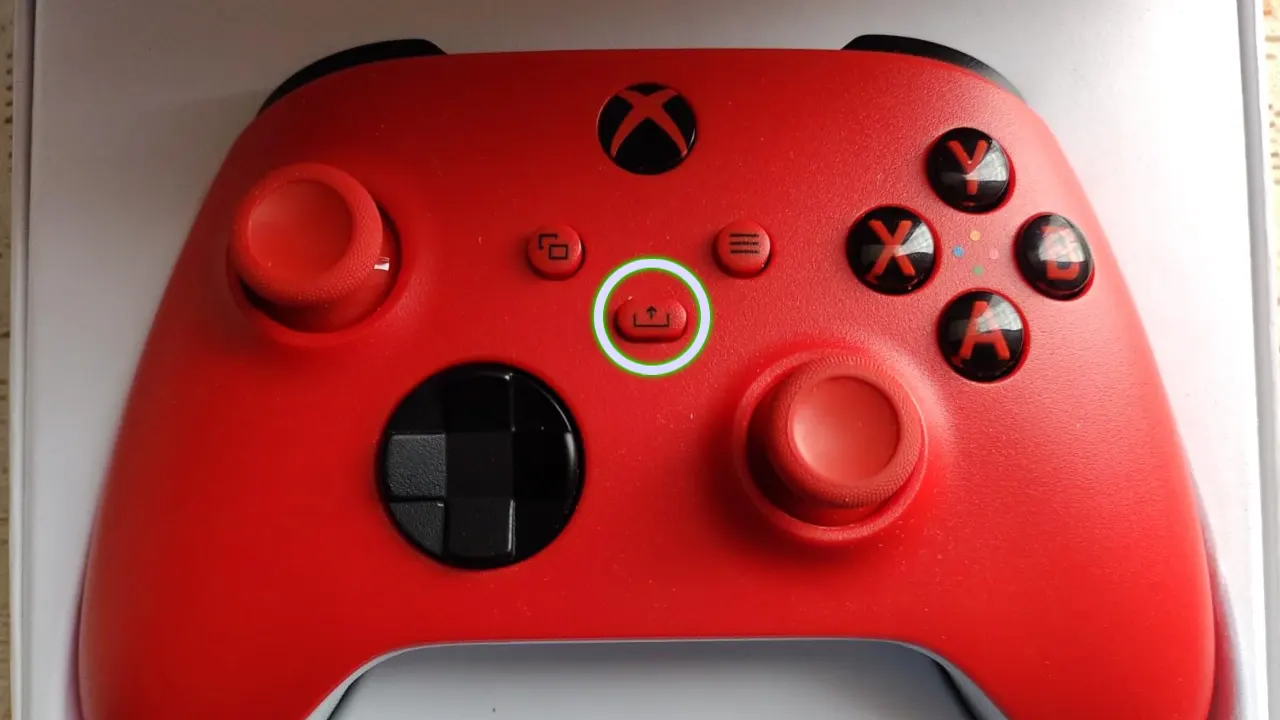
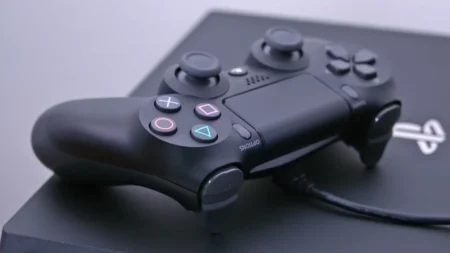
Xbox Series X/S controller has a dedicated Share button in the center between the View and Menu buttons. A quick press during the playthrough captures a still screenshot instantly, and to record a short video clip, hold the same Share button. It’s responsive and doesn’t interrupt your gameplay, so you won’t lose momentum mid-match.
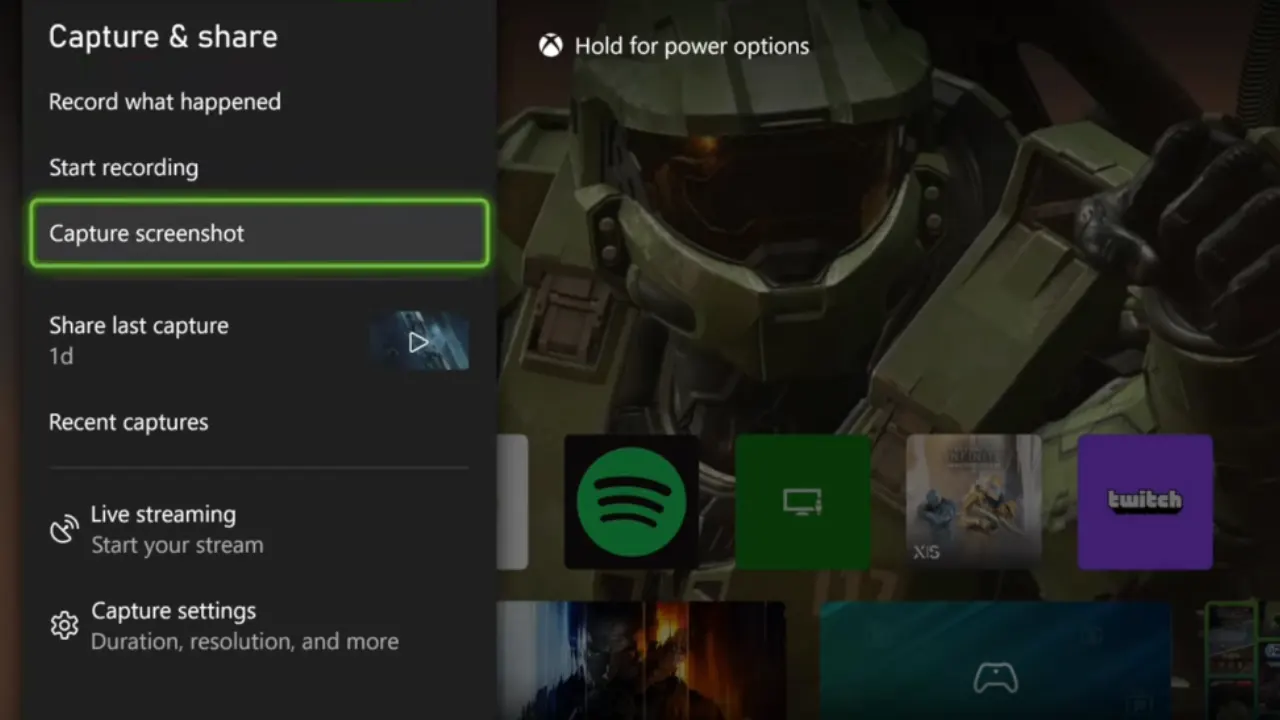
On an Elite Series 2 or old Xbox controller, you won’t see the Share button because it’s exclusive to the Xbox Series X and Xbox Series S. For these consoles, press the Xbox Guide button to bring up the guide, go to Capture & Share, and select either Capture Screenshot, Record What Happened, or Start Recording based on what you want to save.
Adjust Capture Settings and Video Length

By default, holding the Share button saves the last 30 seconds of your gameplay, but you can increase the clip length. Open the guide and head to Settings → Preferences → Capture & Share and set your preferred length and resolution for video recordings.
The console can record videos up to 30 seconds in 4K, 60 seconds in 1080p, or 3 minutes in 720p. There, you can further choose where your clips should be saved. Xbox uploads all files to the cloud by default. You can change settings to store them locally, or keep the same option to automatically upload captures to the Xbox Network (or Xbox Live) for easy sharing. To store in PC, head to Capture & Share > Capture Settings > Automatically Upload and select Don’t Upload.
How to Record Gameplay Manually

Automatic captures are great for surprises, but often you know a big moment is coming like a final boss or a long drift run, and want to save the clip. Open the guide, go to Capture & Share, and select Start recording. Xbox will start recording from the current in-game moment until you stop it or the maximum record duration hits. Once finished, open the guide again to stop recording. The clip will be saved automatically, and you’ll see a confirmation pop-up on the screen.
How to Manage and Back Up Your Captures on Xbox Series X/S
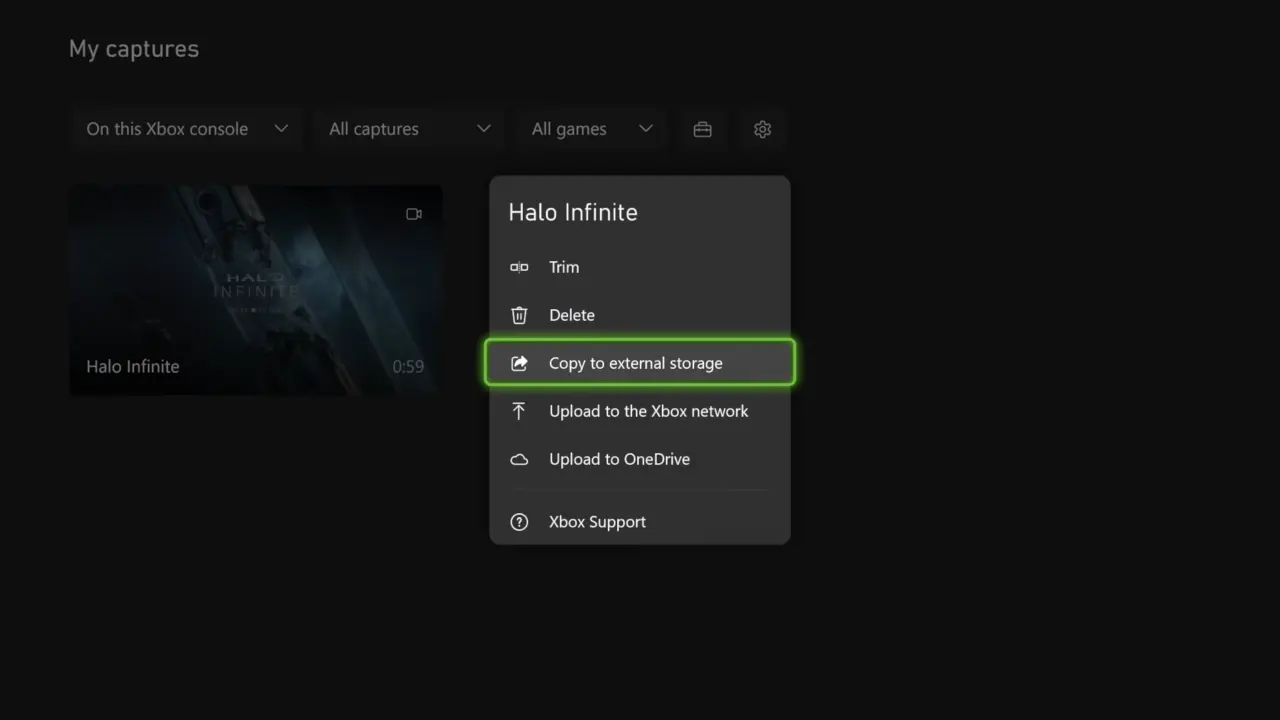
Your online captures don’t stay on the Xbox Network forever because Microsoft automatically deletes them after 90 days. If you care about your best highlights and want to keep your favorite photos and clips for a long time, then back them up.
The simplest way is to upload them to OneDrive directly from the Share menu. OneDrive integrates with Xbox and keeps your saves permanent unless you manually clean the drive after some years. Alternatively, you can plug in a USB 3.0 drive (formatted to NTFS), open the Captures app, select the Manage icon, then select the files you want, and choose Copy to external storage.
If you’re using the Xbox mobile app, your captures auto-sync once uploaded to the Xbox network.
How to Share Your Captures on Xbox
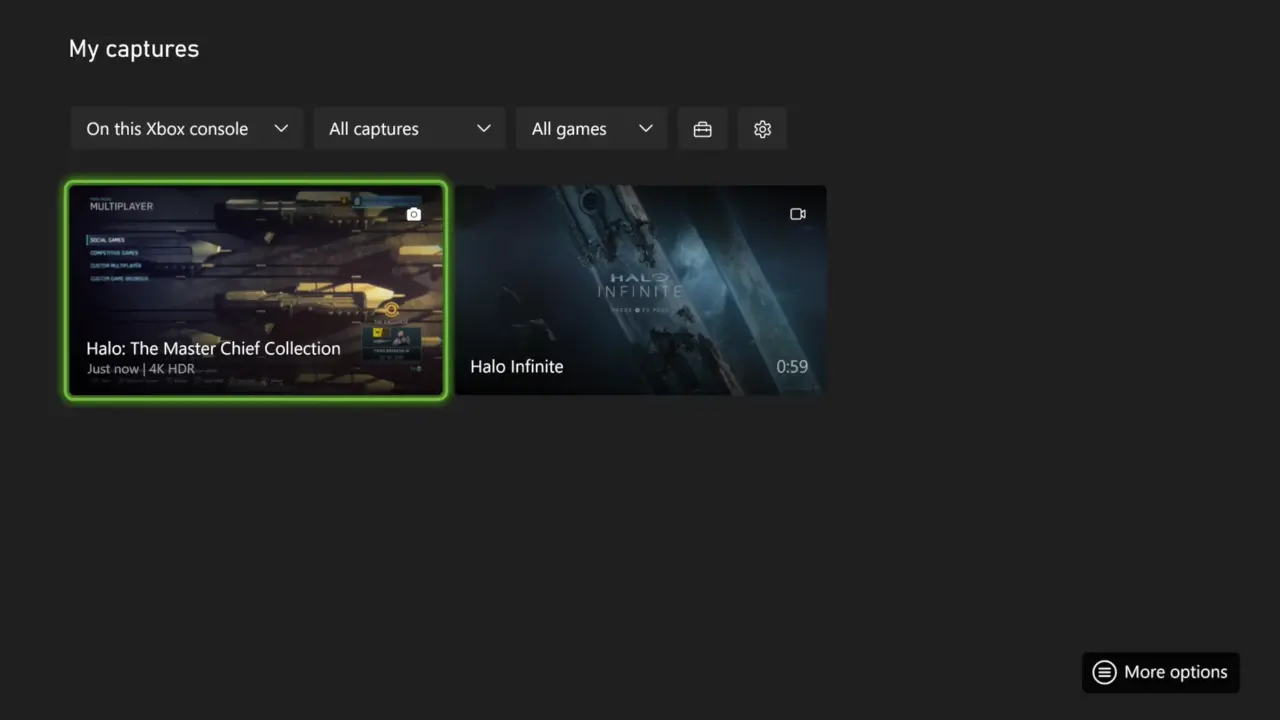
Once your captures are ready, sharing them takes just a few seconds. Press the controller’s Guide key, move to Capture & Share, and select Recent captures. Pick the screenshot or video you want to post to see options to upload it to the Xbox network, OneDrive, or even send it to your mobile device through the app.
The Xbox app is handy if you like to post clips to social media. You’ll get a notification when a new capture is available, and you can open My Library → Captures to save it to your phone’s gallery or upload it anywhere.
You can personalize how the Share button works in the Xbox Accessories app. This lets you assign different actions to a single press or a press-and-hold, such as to switch between capture screenshots, start a recording, or save recent gameplay.
Access Captures on Other Devices
Xbox captures aren’t limited to the console. Anything uploaded to the Xbox network or OneDrive can be accessed and downloaded from the Xbox mobile app on Android or iOS. You can also find and manage everything through the Captures app on the console, where it’s easy to trim videos, rename clips, or organize your screenshots. So on console, phone, or PC, your content stays within reach everywhere.